regex101 — Four-pane tool
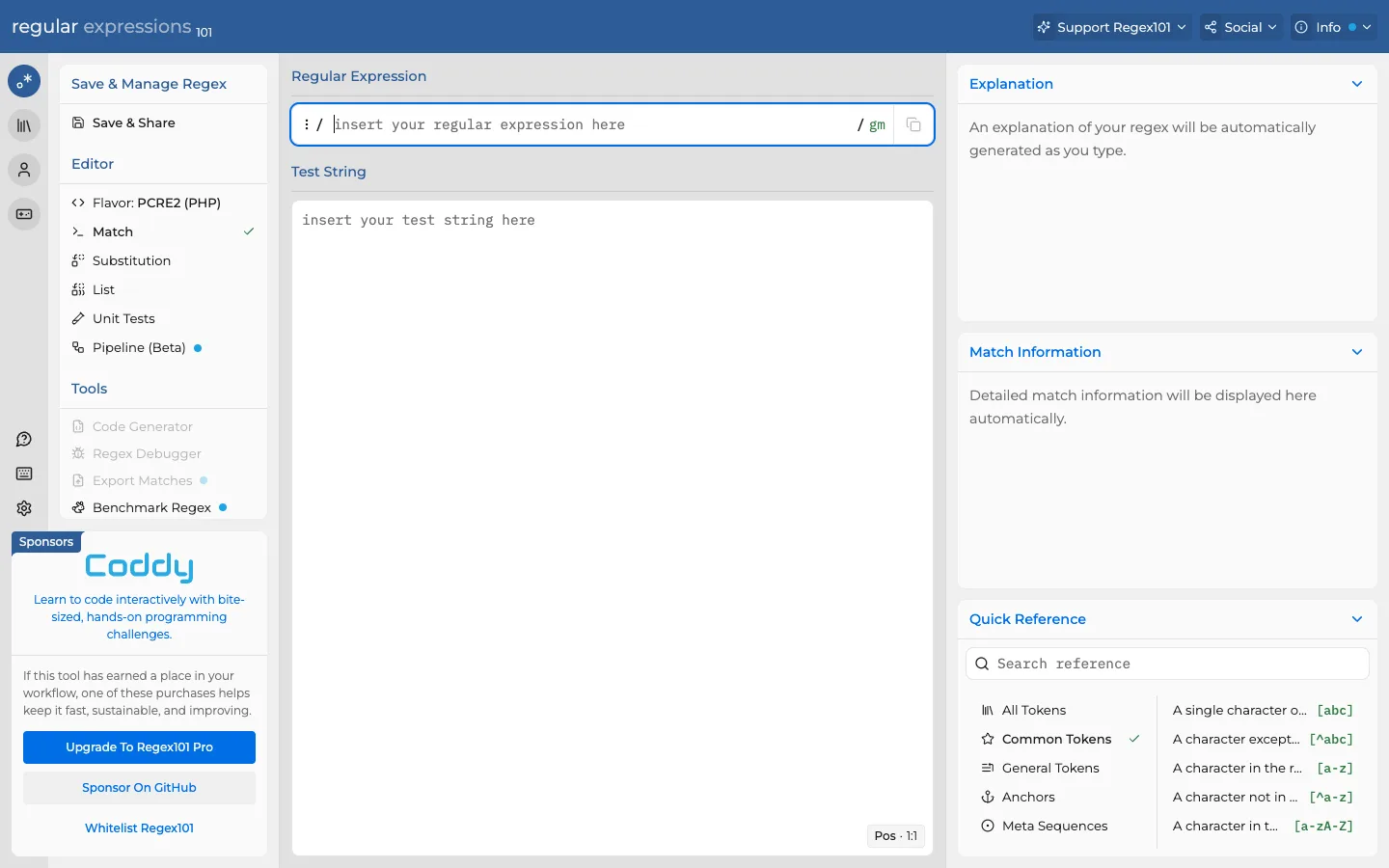
Every one of its working panels is empty, and every one of them is captioned with a full sentence explaining exactly what will show up there once you type — the empty state does the onboarding instead of a separate tutorial.
Why this pattern works
Steal the placeholder-as-explainer pattern: instead of a blank panel or a generic 'No data yet', write a full sentence in the voice of the feature itself ('An explanation of your regex will be automatically generated as you type') so the empty state teaches the tool's mental model before the user has done anything. Also worth taking: greying out and disabling entire sidebar tool rows (Code Generator, Regex Debugger, Export Matches) until there's a match to act on, so the nav visibly grows more capable as the user progresses instead of erroring when clicked too early.
Design notes
- Surface
- regex101 default landing state, before any regex or test string has been entered
- Navigation
- Two tiers on the left: a ~50px dark icon rail (logo mark, chat, account, settings) and a ~240px white panel under a 'Save & Manage Regex' heading, split into a live 'Editor' section (Flavor, Match — active with a green check, Substitution, List, Unit Tests, Pipeline) and a greyed-out 'Tools' section (Code Generator, Regex Debugger, Export Matches, Benchmark Regex) that only lights up once there's something to export or debug.
- Layout
- Three fixed-width columns: left tool sidebar, centre working column (regex input over test string, both full-bleed white boxes with borders), right info column (three stacked collapsible panels). Centre and right are what will scroll once content is long; the shot shows them at rest.
- Density
- Roomy for a dev tool — generous padding inside every box, comfortable line height, 14-15px body type throughout. Reads more like a teaching tool than a terminal.
- Color
- Dark navy header is the only saturated surface on the page. Everything below it is white or light gray, with a single blue used consistently for every actionable element — headings, links, the active nav check, the upgrade button — and green reserved for the one active/selected state (Match mode).
- Type
- One sans throughout, no monospace even for the regex/test inputs themselves — monospace only shows up in the Quick Reference's bracket examples ([abc], [a-z]). Section headings are small blue semibold; body and placeholder text is regular gray.
- Pattern
- Placeholder text that explains the mechanism, not just the absence: 'An explanation of your regex will be automatically generated as you type,' 'Detailed match information will be displayed here automatically.' The empty state is written copy, not a blank box or a generic icon.
- States
- Pure empty/first-run state: both primary inputs show italic-gray instruction placeholders, all three right-column panels show their explainer sentence instead of data, and every sidebar Tool row is disabled/greyed because there's nothing yet to generate code from, debug, or export.
- Don't
- Don't write empty-state copy that's just a noun phrase ('No results', 'Nothing here yet'). The value of this pattern is a full sentence, in the tool's voice, telling the user what causal action produces the content — the tense ('will be...as you type') is doing the teaching.
Make it your own
Turn this reference into a useful brief for your project. Copy it into the AI tool you already use.